Summary
This is a part of Chronos tutorial series.
Chronos by Intelligex is an open source, self-hosted control plane for AI agents and MCP tools. In this tutorial you will build a RAG (retrieval-augmented generation) agent with Qdrant as the vector store and Ollama for locally-hosted embedding models, all in about ten minutes. The walkthrough exercises Chronos Document Stores end-to-end: parsing a PDF, chunking it, embedding the chunks against a locally-hosted model, upserting them into Qdrant, and wiring the result into an agent that answers questions about the document.
Everything runs on your machine — no documents, embeddings, or queries leave the host.
Overview
How Chronos Document Stores work
A Chronos Document Store has three components:
- Document Loaders — parse and chunk source documents (PDF, CSV, JSON, DOCX, EPUB, HTTP-fetched content, and more).
- Embedding Providers — turn each chunk into a vector. Chronos supports cloud providers as well as local Ollama-hosted embedding models.
- Vector Stores — index the embeddings and serve similarity search at query time.
For this tutorial we use the PDF loader, the Ollama Embeddings provider, and Qdrant as the vector store. Once the documents are upserted, we point an Agent node at the store and the agent answers questions grounded in the indexed content.
In Chronos every agentflow you build — including the RAG agent below — is also auto-registered in the Agent registry as a BUILT_IN agent.
This means the same uniform /api/v1/agents/<slug>/invoke endpoint works for this RAG agent, plus the same observability hooks that apply to any other Chronos agents.
Quick start with Docker Compose
Qdrant and Ollama both provide official container images. The Chronos repository's docker-compose-vectordb.yml uses them together.
In the chronos_app/docker/ directory you'll find the example compose files.
The one we will use in this tutorial is docker-compose-vectordb.yml.
cd chronos/chronos_app/docker
docker compose -f docker-compose-vectordb.yml up

# pull the embedding model into the running Ollama container
docker compose -f docker-compose-vectordb.yml exec ollama ollama pull nomic-embed-text
# Chronos: http://localhost:3001
# Qdrant:  http://qdrant:6333  (used inside the docker network)
# Ollama:  http://ollama:11434 (used inside the docker network)
For more compose recipes (workers + queue mode, schedules, OpenTelemetry, the end-to-end Agent + MCP demo), see Hosting Chronos — advanced examples.
Configure the Document Store
Create a new Document Store
Once all three containers are up and running, open http://localhost:3001, sign in, and pick Document Stores from the left sidebar.
Click + Add New, name your store, save. You now have an empty store ready for content.
Add a Document Loader
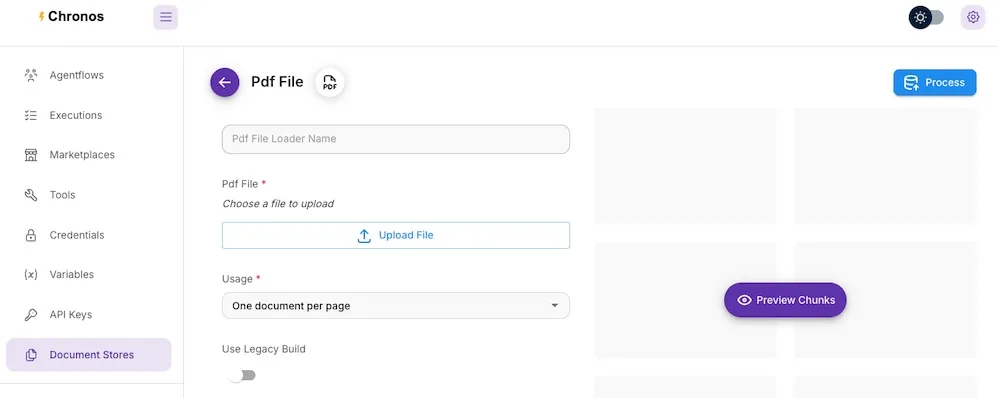
Inside the new store, click Add Document Loader. Chronos shows a picker with every supported loader format. Pick the PDF loader for this tutorial.
- Name the loader.
- Select the source PDF file.
- Configure chunking options (size, overlap) — the defaults work well for most prose.
- Click Process to chunk the file in-place.
Upsert chunks to the vector store
Now upsert the chunks into Qdrant.
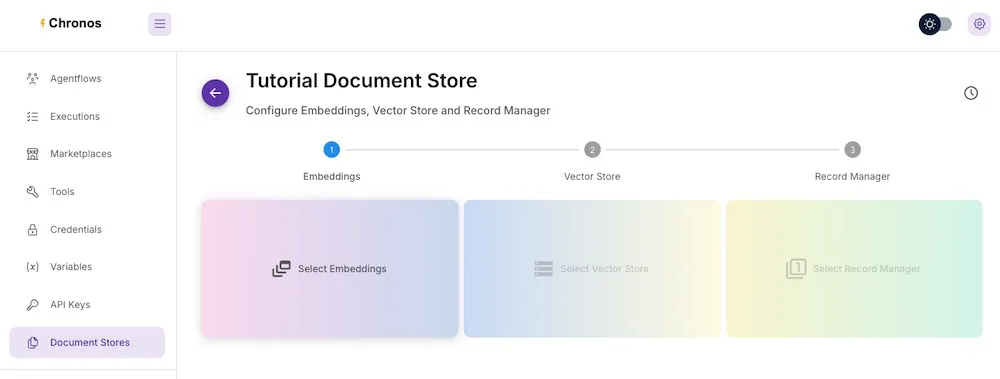
- Open the More Actions dropdown and pick Upsert All Chunks.
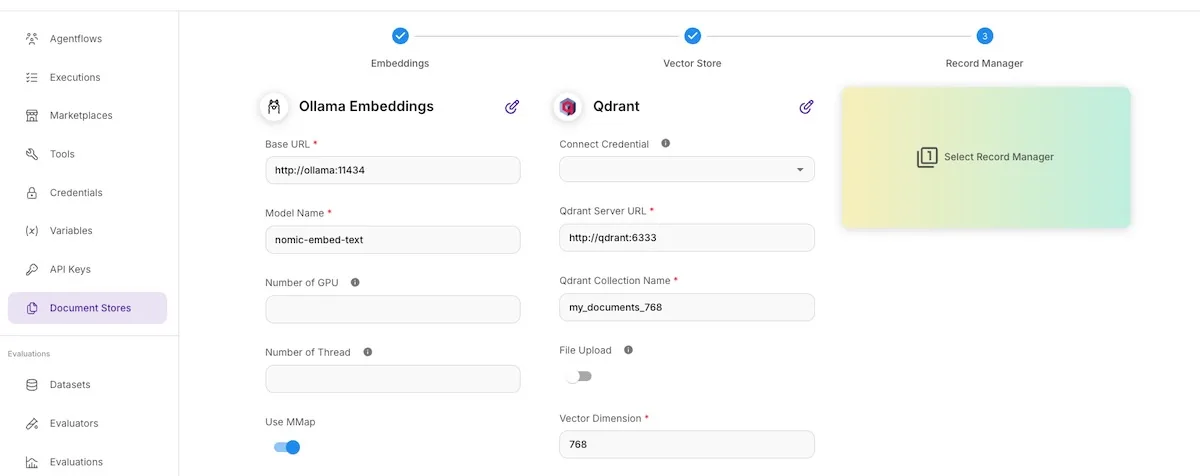
- Under Select Embeddings, pick Ollama Embeddings.
- Base URL:
http://ollama:11434 - Model name:
nomic-embed-text
- Base URL:
- Under Select Vector Store, pick Qdrant.
- URL:
http://qdrant:6333 - Vector dimension:
768- the dimensionnomic-embed-textmodel produces.
- URL:
- Click Save Config, then Upsert. Chronos pushes the embeddings into Qdrant and stamps an entry in the Upsert History.
What is a vector database?
A vector database stores and indexes high-dimensional vectors — embeddings produced from text, images, or other input. The embeddings capture semantic meaning, so similarity search retrieves results that mean something close to the query rather than results that share the exact words.
Chronos has built-in integrations for most popular vector databases. This tutorial uses self-hosted Qdrant; the table below summarises trade-offs across the others Chronos supports out of the box.
| Database | Best for | Scale | Memory usage | Ease of setup |
|---|---|---|---|---|
| Qdrant | Production, complex filtering | Up to 50M vectors | Moderate | Easy |
| ChromaDB | Prototyping, small projects | Under 10M vectors | Low | Very easy |
| pgvector | Existing PostgreSQL users | Moderate | Shared with DB | Easy |
| Milvus | Enterprise, billion-scale | Billions of vectors | High | Complex |
| Weaviate | Hybrid search, GraphQL | Up to 100M vectors | Moderate | Moderate |
Looking for a managed-tool path? Many teams expose their vector store as an MCP server (a self-hosted tool service speaking the Model Context Protocol) so multiple agents can hit it through one credential-brokered, audited gateway instead of each agent holding the connection details. See register an MCP server in Chronos by Intelligex for that path. The Document Store / Agent-node path covered here is the right starting point for a single-agent RAG flow.
Use the Document Store from an agent
You now have an upserted store. Time to give an agent access to it.
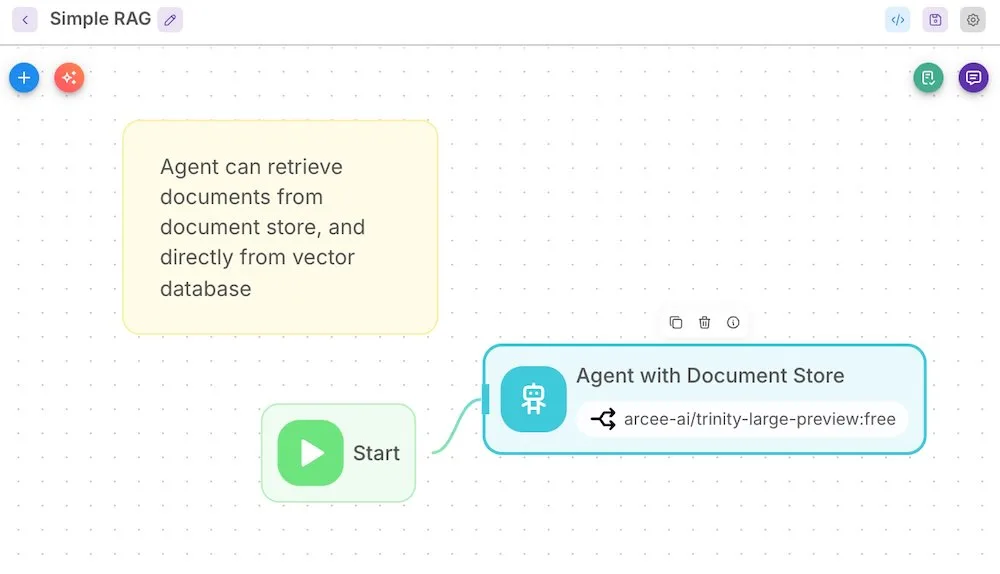
Open Agentflows and start a new flow. Drop an Agent node onto the canvas and connect it to the Start node.
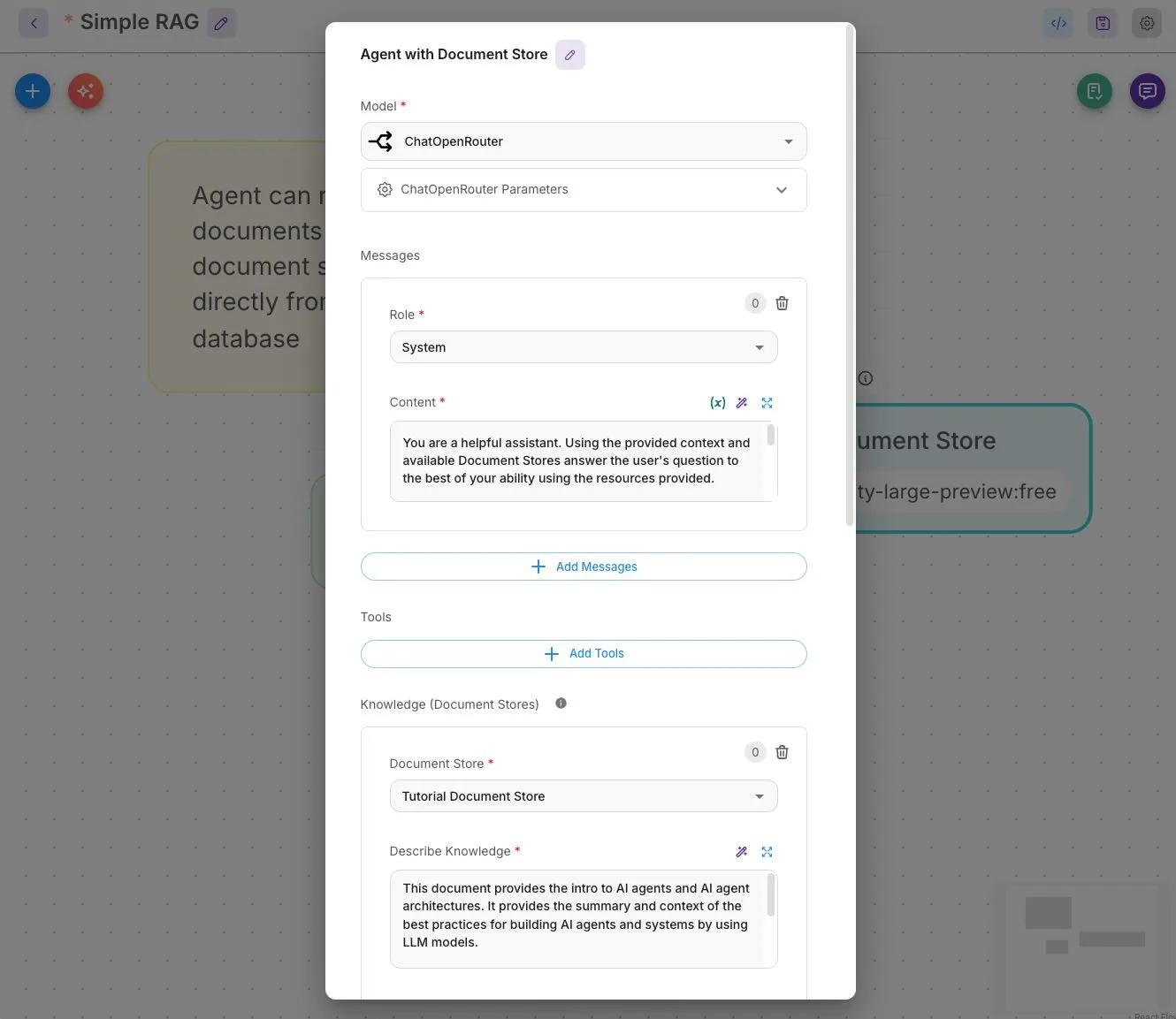
Open the Agent node settings:
- Model. Pick an LLM. OpenRouter with any free model - e.g.
stepfun/step-3.5-flash:freeworks well for experimentation. - System message. Describe the agent's role — e.g. "You answer questions about the AI agent best-practices document."
- Document Store. Add the Document Store you just upserted. Provide a short description so the agent's tool-use reasoning knows what kind of questions belong against this store. You can attach more than one store if you want.
Test the RAG agent
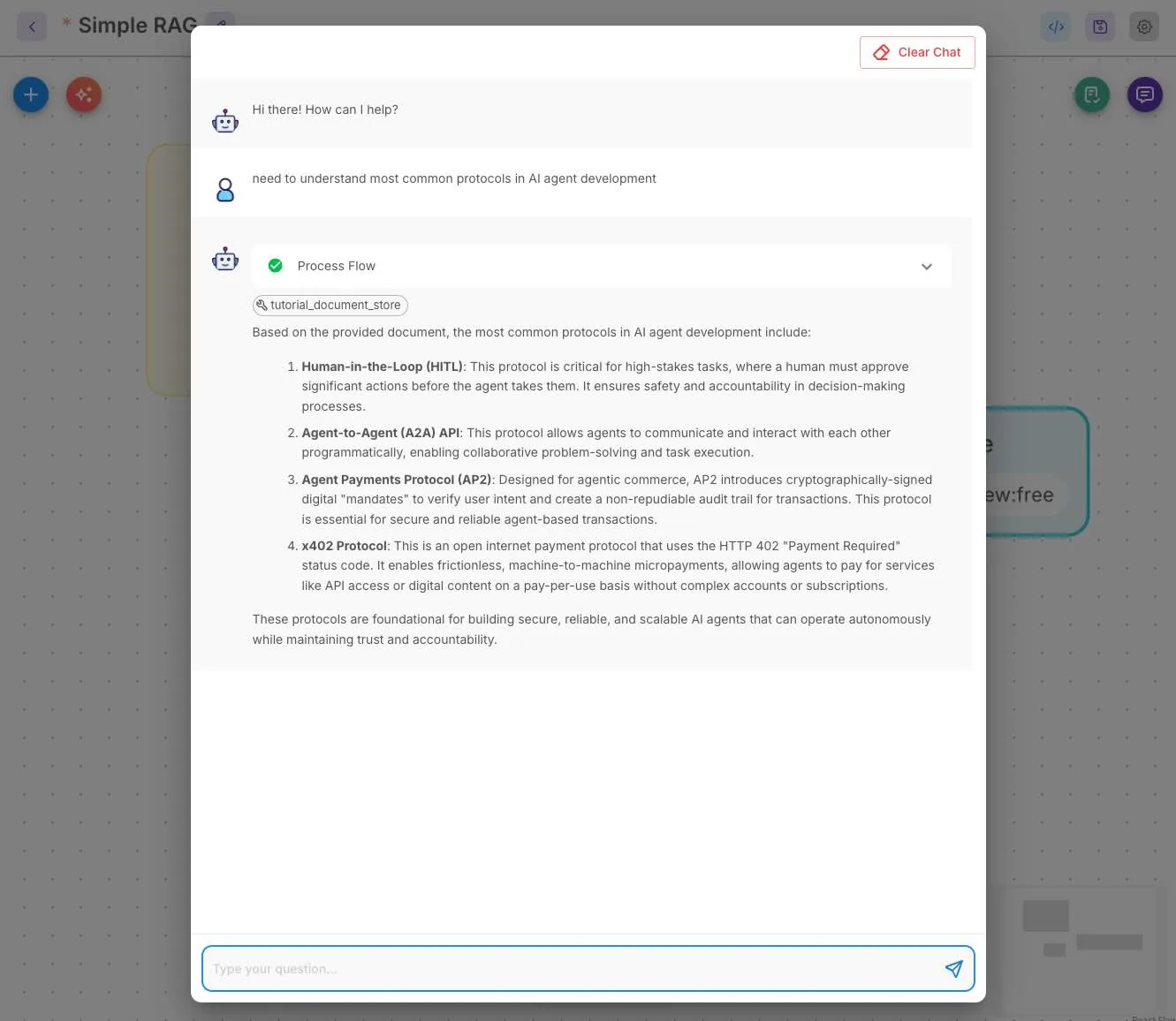
Open the chat widget (speech-bubble icon, top-right). Ask a question that the document covers:
What does the document say about evaluating agent performance?
The agent retrieves relevant chunks from Qdrant, hands them to the LLM as context, and replies with an answer grounded in the source PDF. The widget shows which Document Store the agent consulted under the response.
Summary
You now have a self-hosted RAG agent: documents chunked locally, embedded by a locally-hosted Ollama model, stored in a locally-hosted Qdrant instance, and answered by a Chronos agent that retrieves context at query time. No content leaves the host.
Two natural next steps: index more documents into the same store (or stand up a second store for a different domain), and try different models — swap nomic-embed-text for another embedding model and observe how retrieval quality changes.