Summary
This is part of Chronos tutorial series.
Chronos by Intelligex is an open source, self-hosted control plane for AI agents and MCP tools. It supports two ways of hosting agents: building one node-by-node on the visual canvas, or registering an external agents through the HTTP runtime. This tutorial covers the canvas path — the fastest way to get a working conversational agent in front of a chat widget without writing any backend code.
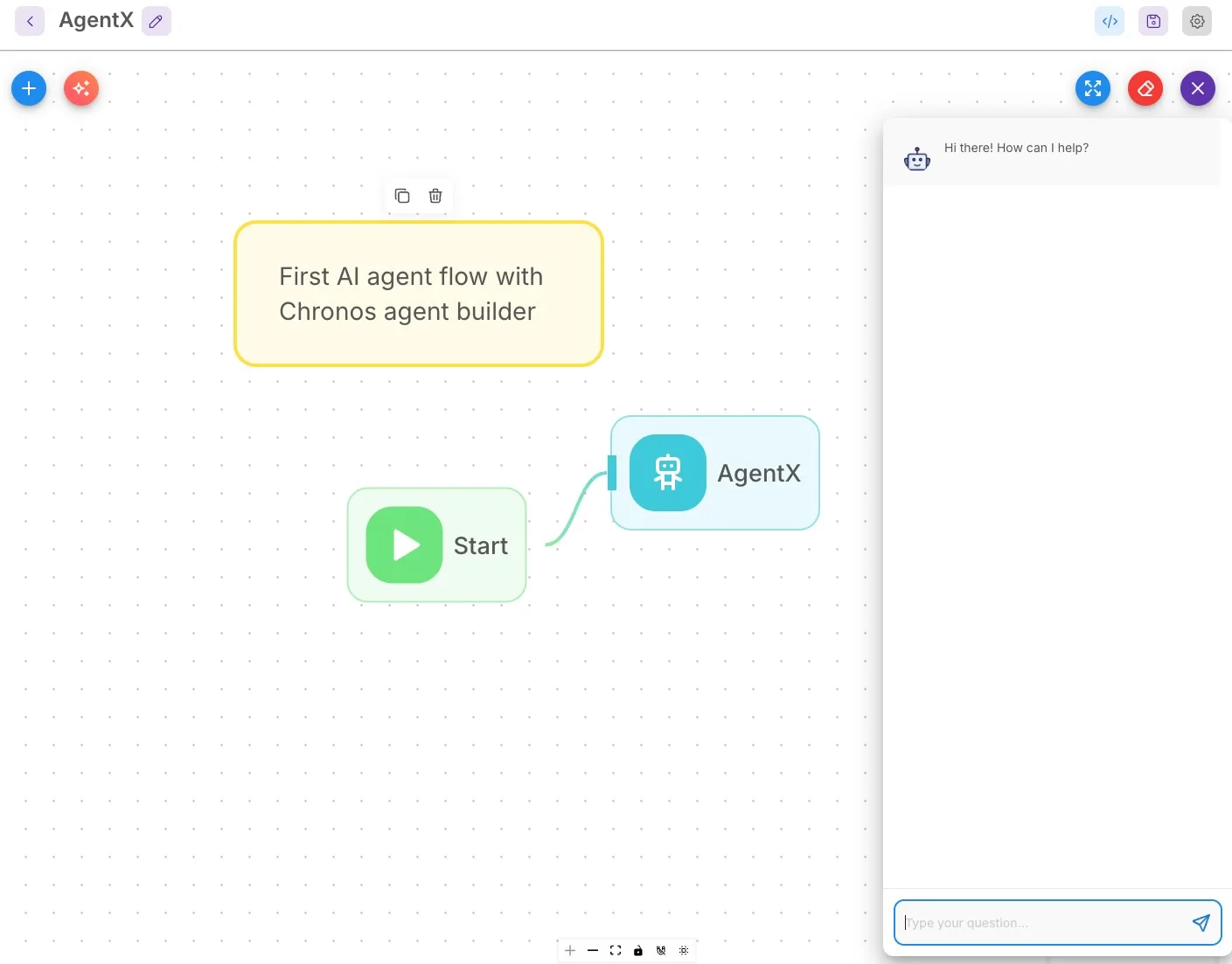
By the end you will have a two-node agentflow wired to an LLM through OpenRouter, running in your browser and reachable over the API.
Looking for the code-first path? If you already have an agent written in LangGraph, Mastra, the OpenAI Agents SDK, or any framework that speaks OpenAI chat completions, register it as an HTTP agent instead — see register an HTTP agent in Chronos by Intelligex. Both paths surface through the same Agent registry; the rest of the platform (governance, scheduling, MCP gateway) treats them uniformly.
Prerequisites
- Docker and Docker Compose installed.
- Git installed.
- An OpenRouter account — free to sign up at openrouter.ai.
- A web browser.
What is an agentflow?
An agentflow is a Chronos visual workflow: a graph of nodes you arrange on a canvas to define how the agent processes input. You drag nodes from a palette, connect their handles together, configure each one, and end up with a runnable AI agent — no backend code required.
Since Chronos v1.6, every agentflow you build also lands as a BUILT_IN row in the Agents registry — automatically, no extra steps.
That gives canvas agents the same uniform /api/v1/agents/<slug>/invoke invocation surface as external HTTP agents, plus the same observability and (in upcoming releases) governance hooks.
Part 1: Start Chronos
Step 1.1: Build and start with Docker Compose
Clone the repository and bring up the simplest compose stack — a single Chronos container backed by Postgres:
git clone git@github.com:intelligexhq/chronos.git
cd chronos/chronos_app/docker

docker build -f Dockerfile.local -t chronos:local ..
docker compose -f docker-compose.yml up
# Chronos is now accessible on http://localhost:3001
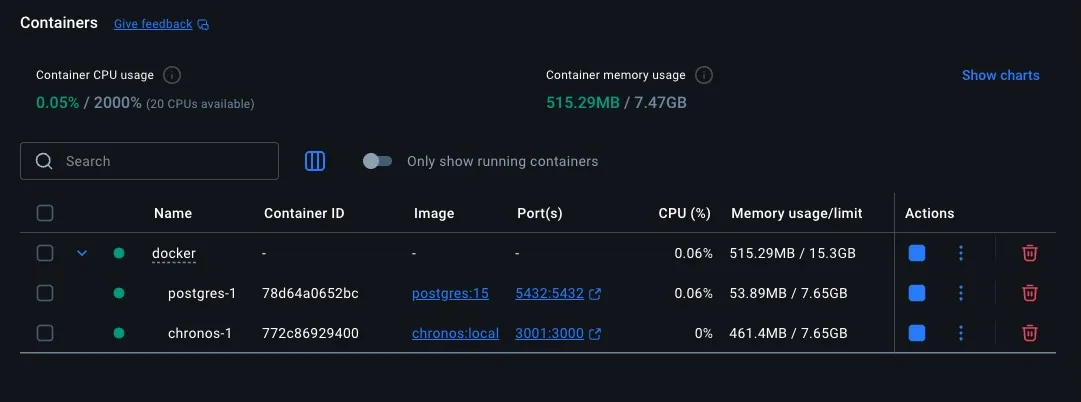
Open http://localhost:3001 in your browser.
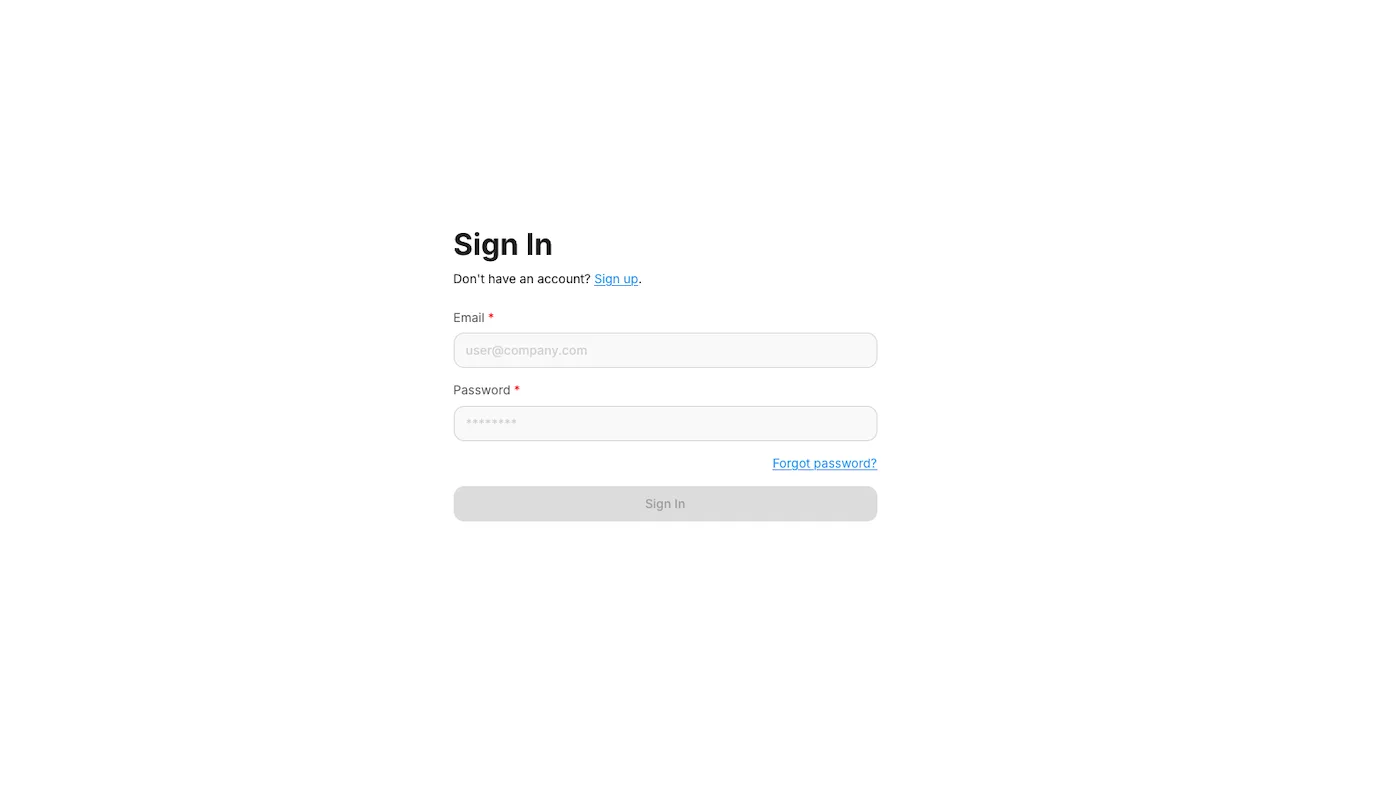
Step 1.2: Sign in
Chronos auto-provisions an admin user during first start using the CHRONOS_INITIAL_USER environment variable. The default compose file has this configured:
- Email:
admin@admin.com - Password:
test1234
Sign in. You will land on the home screen.
Part 2: Get an OpenRouter API key
Chronos talks to LLMs through credentials you store in its credential vault. For this tutorial we will use OpenRouter — a single API gateway that fronts 200+ models, including a wide pool of free models.
Step 2.1: Create an OpenRouter account
- Go to openrouter.ai.
- Click Sign Up and create a free account.
Step 2.2: Generate an API key
- Visit openrouter.ai/keys.
- Click Create Key, name it (e.g.
chronos-tutorial), submit.
Step 2.3: Copy the key
Copy the value — it starts with sk-or-…. You will paste it into Chronos in the next step.
Important: treat this like any other API secret. Don't commit it to version control.
Part 3: Add the OpenRouter credential
Step 3.1: Open the Credentials page
Click Credentials in the left sidebar.
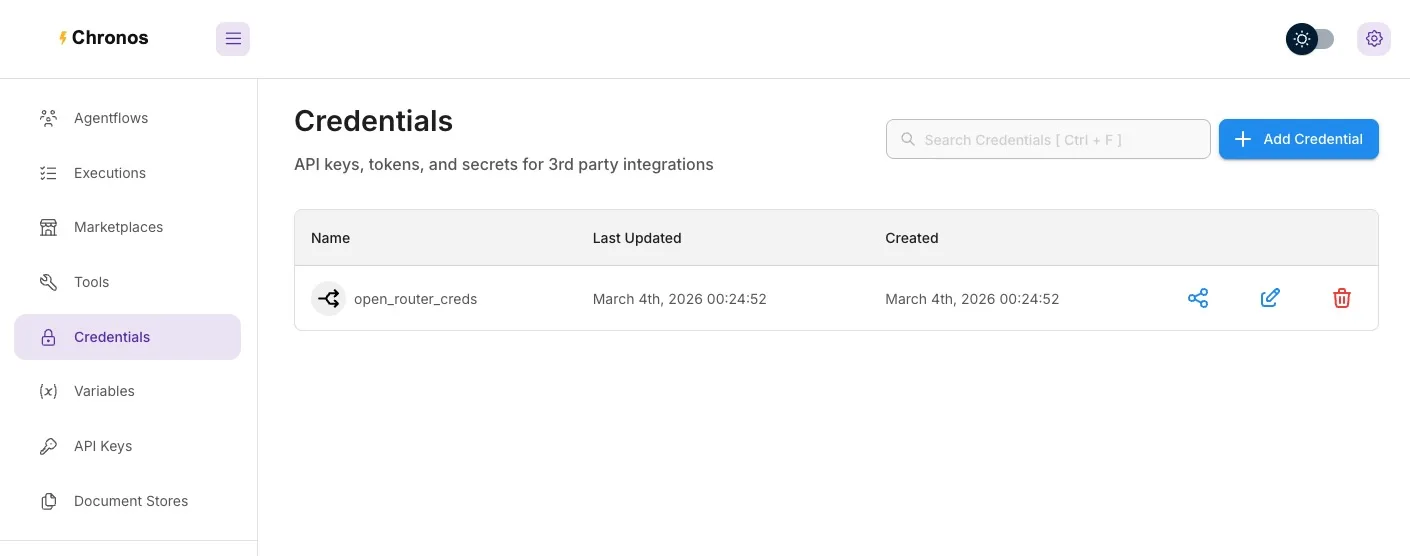
Step 3.2: Add the credential
- Click + Add Credential.
- Search for and pick OpenRouter.
- Set a credential name of your choice (e.g.
open_router_creds) and paste the key. - Save.
The credential is now encrypted at rest under ~/.chronos/encryption.key and reachable from any agentflow node that supports OpenRouter.
Part 4: Build the agentflow
Step 4.1: Create a new agentflow
- Click Agentflows in the sidebar.
- Click + Add New.
- Click the Save icon (top-right). Name it
AgentX(any name works).
You are now on the canvas with a Start node already placed.
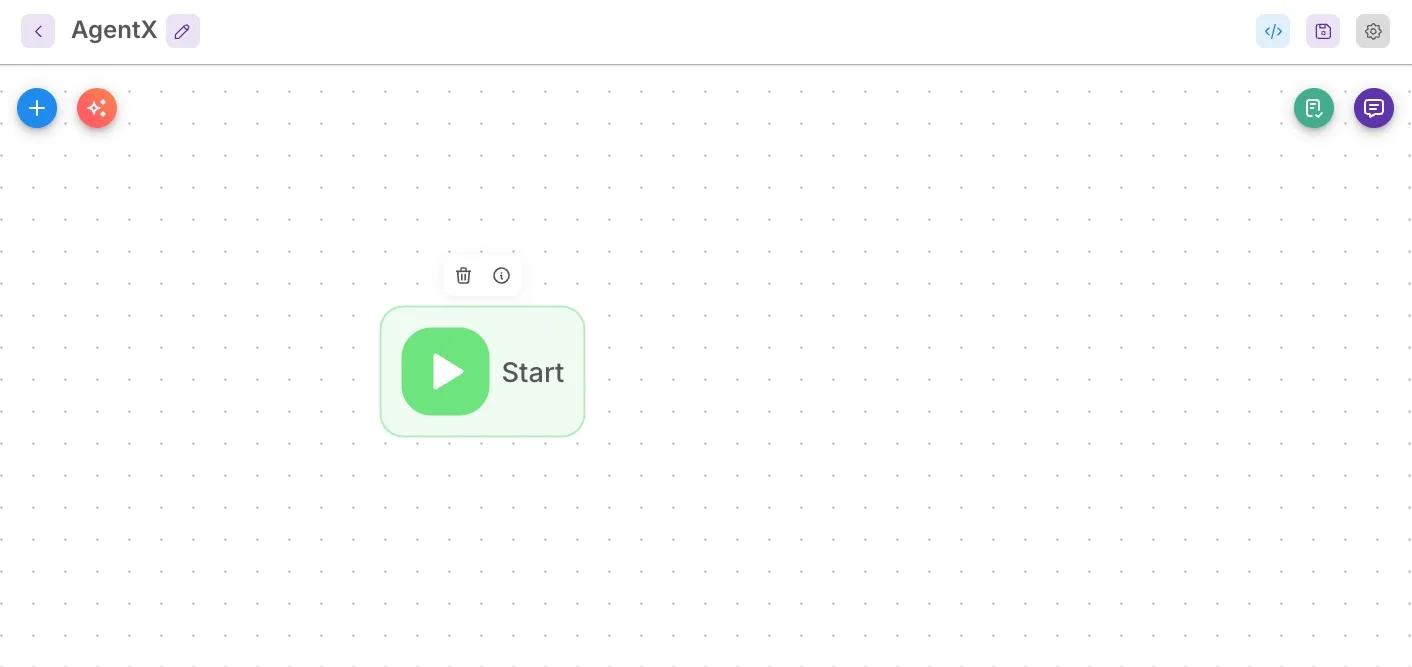
Step 4.2: Configure the Start node
- Click the Start node.
- Confirm Input Type is set to Chat Input (the default).
The Start node is what receives the user's chat message and hands it to the next node in the graph.
Step 4.3: Add an Agent node
- Click the + button or drag from the node palette on the left.
- Pick the Agent node and drop it onto the canvas.
- Wire the Start node's output handle to the Agent node's input handle by dragging a line between them.
Step 4.4: Configure the Agent — pick the model
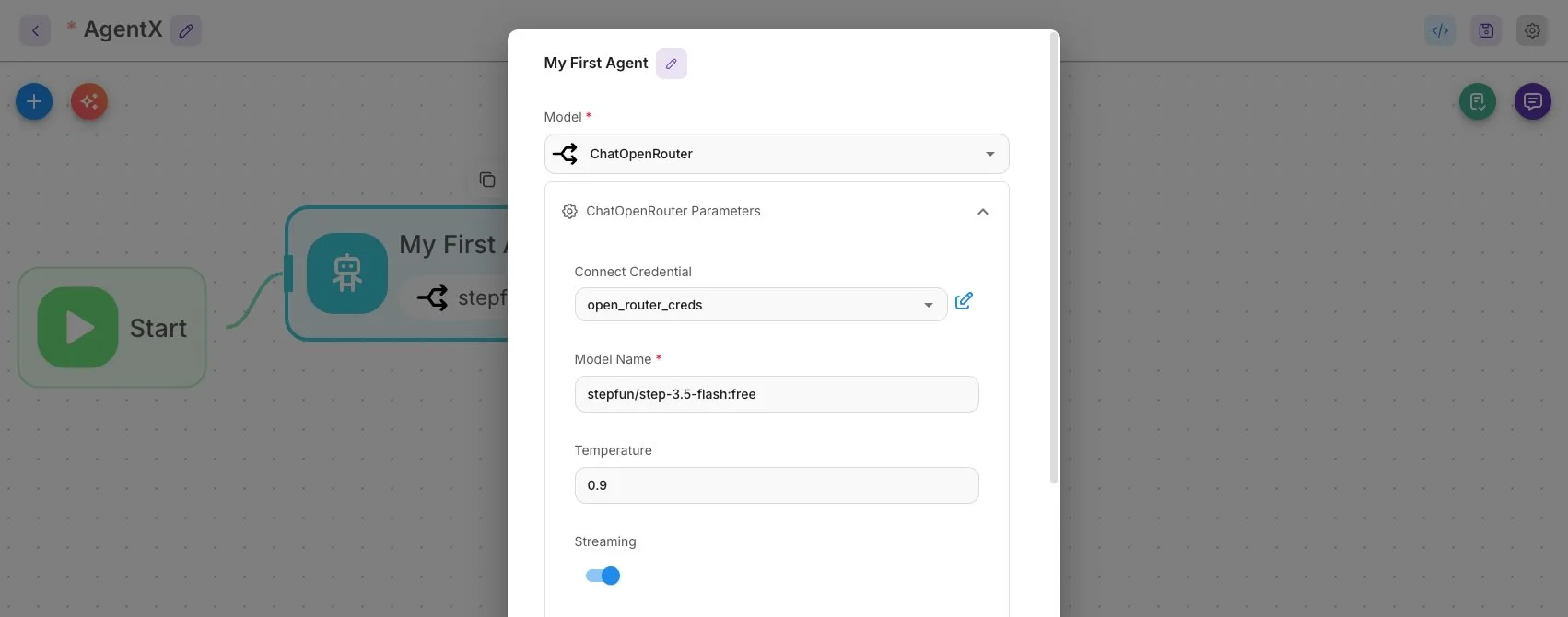
- Double-click the Agent node to open its settings panel.
- Rename it to
My First Agent(again, naming standards are yours). - In the Model dropdown, select ChatOpenRouter.
- Under ChatOpenRouter Parameters, in Connect Credentials, pick the credential you created in Part 3.
- In Model Name, type the exact name of an OpenRouter model. At the time of writing,
stepfun/step-3.5-flash:freeis a solid free option — see openrouter.ai/models for the live list. - Leave the rest as defaults.
- Click Save (top-right).
Part 5: Test in the chat widget
Step 5.1: Open the chat widget
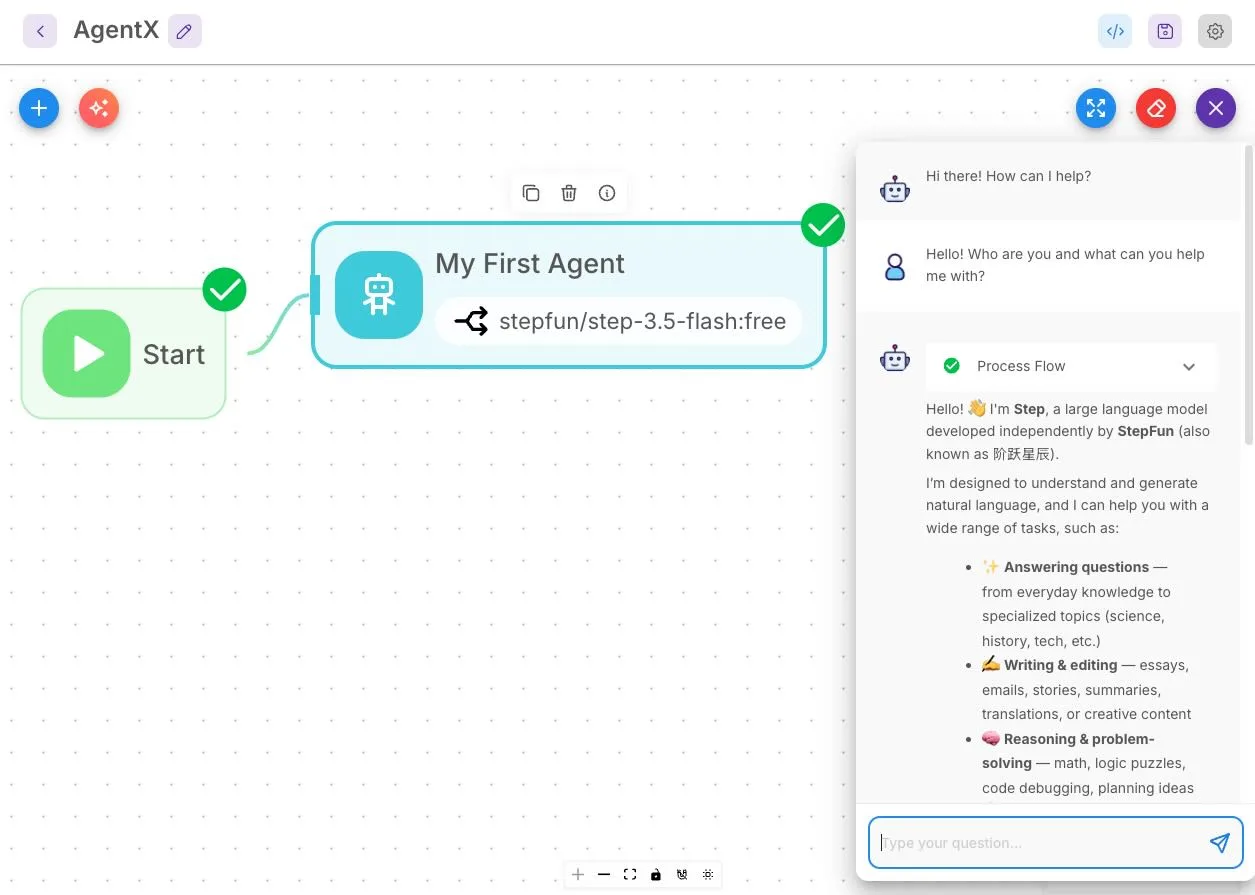
Click the chat (speech-bubble) icon in the top-right. The built-in chat widget opens.
Step 5.2: Send a test message
Type a prompt and hit Enter:
Hello! Who are you and what can you help me with?
You should see a response from your agent within a few seconds.
Step 5.3: Try a follow-up
Conversation memory is on by default — the LLM receives the running context with each turn:
Can you explain that in simpler terms?
The agent's reply will reference the earlier turn.
Part 6: Call your agent over the API (optional)
Every agentflow is reachable programmatically. The fastest way to grab a working snippet is through the Integration widget.
Step 6.1: Get a CURL example
Click the Examples icon next to the Save button (top-right). The Integration widget opens. Pick the CURL tab — you will see a runnable request templated with your agentflow's ID.
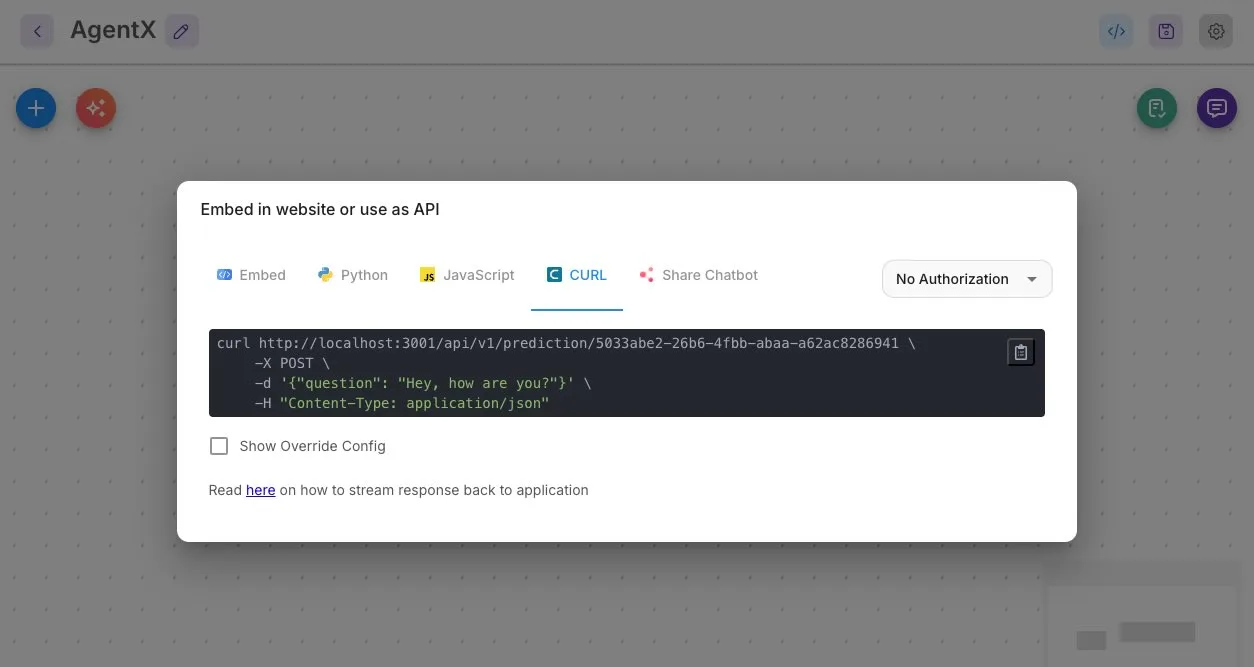
Note: If API-key auth is enabled on your Chronos instance, prepend
Authorization: Bearer <YOUR-API-KEY>to every request. Generate keys under Settings → API Keys.
Because, since Chronos v1.6, every agentflow also lives in the Agent registry as a BUILT_IN row, you can also reach it through the uniform agent endpoint which implements OpenAI API specification:
curl -s -X POST http://localhost:3001/api/v1/agents/my-first-agent/invoke \
  -H "Content-Type: application/json" \
  -H "Authorization: Bearer <YOUR-API-KEY>" \
  -d '{"messages":[{"role":"user","content":"Hello!"}]}'
The slug my-first-agent in the above example is your agentflow name; check the Agents page to confirm the exact value.
Tips and next steps
- Add MCP tools. Plug your agent into a registered MCP server so it can query a database, hit GitHub, hit Microsoft Graph or call your in-house tool service through the gateway. See register an MCP server in Chronos by Intelligex.
- Schedule recurring runs. Drive the agent on a cron based schedule — e.g. summarise all yesterday's reports at 9am. See schedule agent runs in Chronos by Intelligex.
- Build a RAG agent. Feed the agent your documents locally through Document Stores. See build a RAG agent with Qdrant and Ollama.
- Try other models. Swap the OpenRouter model name to compare answers across providers without changing anything else. Add more agent nodes to the flow and point them to different LLM models to validate, reviews and assess first LLM model work.
Troubleshooting
Chronos not loading at http://localhost:3001
Possible causes: Docker containers aren't running, or port 3001 is already taken.
docker compose ps                    # check container status
docker compose logs chronos          # tail Chronos logs
# port conflict? stop the conflicting service or change the port mapping
"Invalid API Key" or auth error from OpenRouter
The OpenRouter key is wrong, expired, or out of credits. Generate a new one at openrouter.ai/keys and update the credential in Chronos.
"Model not found" or invalid model name
The model string doesn't match anything OpenRouter exposes. Pick a model from openrouter.ai/models and copy the full identifier (e.g. stepfun/step-3.5-flash:free, not just step-3.5-flash:free). Some models require a paid OpenRouter account; start with the free pool for experimentation before moving to paid ones.